Particle systems
A Particle system layer is particles you build yourself: emitters that give birth to particles, and stacks of modules that decide where they start, how they move, how they die and how they're drawn. You build it in the particle editor, which opens as a tab in the row under the toolbar, and you see it play in the preview as you go.
Try it: Solar Wind (emitters, forces, trails and a burst on the beat).
Make one
There are two ways in.
- Click + in the Outliner's tab and add a Particle system (it's under Light and particles). It starts as Frost motes, a soft drift of light, until you change it.
- Take a Fire layer's embers and open them up. Under its Embers drawn by setting, Open as particle system adds a Particle system layer above it with the same embers, so you can change them module by module; the Fire keeps its flames.
The gallery's Particle system also starts from Motes, Rain, Pointer light, Fireworks and 3D particles: those are layers of their own, with plain settings, not emitters and modules.
Pick the layer and its settings on the right show what it holds ("Frost motes · 2 emitters, 22 modules"). Click the Particles tab button there to open the particle editor, as a tab named after the layer, in the row under the toolbar.
The layer's own settings stay small: Amount (how many are born, 0 to 4 times), Speed (0 to 4 times), and Runs on, which is Best, Graphics card or Processor. Everything else is in the particle editor.
The particle editor
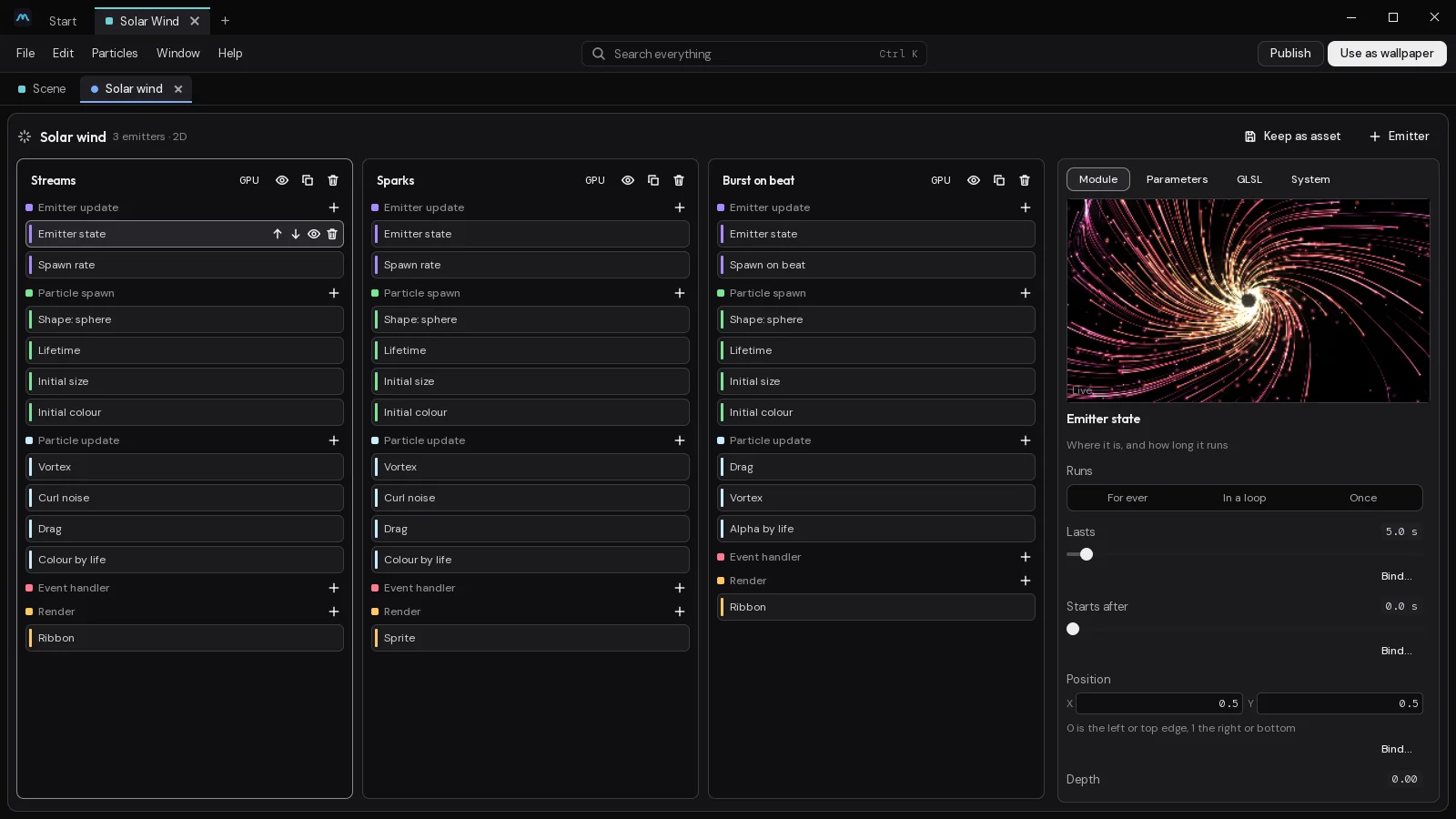
Along the top: the system's name, how many emitters it has, whether it's 2D or 3D, and about how many particles are alive right now. Beside them:
- Keep as asset keeps the system in the scene's assets, so other layers can draw it too (see below).
- Emitter adds an emitter.
Under that, the emitters stand side by side, each a column of modules. On the right is a panel with four tabs: Module (the picked module's settings, over a live view of the layer), Parameters, GLSL and System.
Emitters
An emitter is one stream of particles. A fountain might have one; fireworks have one for the rockets and one for the sparks. A system holds up to eight.
Each column's header has the emitter's name (click it to rename it) and four buttons:
- GPU or CPU: who moves its particles. Click to swap. See GPU or CPU.
- The eye turns the emitter off without losing it.
- Duplicate makes a copy beside it.
- The bin deletes it.
A new emitter starts with a sensible stack: where it is, a spawn rate, a small sphere to start in, a lifetime, a size, a fade-out and a sprite to draw them with.
Modules and stages
Each emitter is a stack of modules, sorted into five stages. Each stage has a colour, and the modules wear it.
| Stage | When it runs | For example |
|---|---|---|
| Emitter update | Once a frame, for the emitter | Spawn rate, Spawn burst, Spawn on beat, Spawn on click |
| Particle spawn | Once, as each particle is born | Shape: sphere, Lifetime, Initial velocity, Initial colour |
| Particle update | Every frame, for every particle | Gravity, Curl noise, Pointer force, Colour by life, Collide: screen |
| Event handler | When something happens | Receive event, Spawn at event, Modify on event |
| Render | When they're drawn | Sprite, Ribbon, Mesh, Light, Trail to texture, Soft edges |
To add a module, click + beside a stage and pick one. It goes in at the end of that stage. Hover a module for its tools: Earlier and Later move it within its stage, the eye turns it off, and the bin takes it away. A module that's off isn't in the shader at all, so it costs nothing.
Order matters inside a stage. Gravity then Drag is not quite the same as Drag then Gravity, and Speed limit after the forces catches what they add.
Click a module to see its settings in the Module tab, with a line about what it does. An emitter holds up to 24 modules.
A few worth knowing:
- Emitter state says where the emitter is, whether it runs for ever, in a loop or once, and whether it Follows the pointer. Start full begins as if it had been running a while.
- Shape: from picture and Shape: from text give birth to particles inside a picture's shape or the letters of a word.
- Mesh draws each particle as a model (a .glb, .gltf, .obj, .fbx, .dae, .ply or .stl file): a picture of it seen from one side, lit, made once from the file and tinted by the particle's colour, turning as the particle spins. It's a flat picture, not a solid in the 3D scene, so it doesn't turn to show its other sides. Without a Sprite it's drawn over what's behind, not added as light.
- In a 3D layer, a placed system's sizes and places are in metres, round the item's place: Shape: box can be as wide as the scene, not only a few screens. A still of a scene (a paused one, or its thumbnail) shows each emitter as it is by then, as if it had been running.
- Collide: layer mask lets particles land on another layer wherever it isn't see-through: a line of text, say.
- Trail to texture has the particles paint into a picture that slowly fades, like ink or smoke.
- Scalability sets how many may be alive at most, and how many fewer at low quality.
Bind a setting to something that moves
Any number in a module can follow an expression instead of staying put. Click Bind… under it. The slider becomes a line of text, already filled in with a start:
User.Amount * 0.4
Engine.Sound.Bass * 2
50 + 30 * sin(Engine.Time)
You can use numbers, + - * /, brackets, and min, max, abs, sin, cos, floor, sqrt, clamp, mix, step and pow. The names come from four families:
| Name | What it is |
|---|---|
User.Name | One of the system's own parameters (next section) |
Engine.Time, Engine.DeltaTime | Seconds since it started; seconds since the last frame |
Engine.Sound.Bass, .Mid, .Treble, .Level | What's playing, from 0 to about 1 |
Engine.Beat, Engine.Beats | The beat, and how many there have been |
Engine.Pointer.X, .Y, .Active, .Idle | Where the pointer is, whether it's there, and how long it's been still |
Engine.Screen.Aspect, .Width, .Height | The screen's shape and size |
Engine.Quality | The quality setting, from 0 to 1 |
Emitter.Age, Emitter.Alive, Emitter.SpawnRate | The emitter's own |
System.Age, System.Seed | The whole system's |
Engine.Focal | The system's focal length (2 unless its file sets another) |
A line turns red when it can't be read. Unbind puts the plain number back. Colours and gradients can be bound too, to a colour or gradient parameter, by name.
Parameters
The Parameters tab holds the system's own settings: things you'll want to turn often, kept in one place. Add a Number, Colour, Gradient, Curve or On or off (up to 16), name it, and set it. Then bind module settings to it as User.Name.
Parameters are also how the rest of the scene reaches in. A script, or the wallpaper's settings, can set one as the layer's user.Name. Make a parameter called Amount, bind the spawn rate to User.Amount * 200, and one number now drives the whole look.
Events: one emitter starting another
Emitters can hand off to each other. This is how a firework rocket bursts into sparks where it dies.
- On the first emitter (the rocket), add Send event in Particle update, and tick Die or Hit something.
- On the second emitter (the sparks), add Spawn from event in Emitter update. Set From to the rocket emitter, When they to the same event, and How many each.
- Add Inherit from parent in Particle spawn if the sparks should carry on with the rocket's speed or colour.
For these of them narrows it to a share of the parents, so only some rockets burst. The Event handler stage does the same in two parts: Receive event picks the source, and Spawn at event says how many.
Modify on event is different: When a click comes, or a beat, it gives every particle within its Reach of it a Push outwards.
An emitter that spawns from another's events must run where that one does: both on the graphics card, or both on the processor. When they don't, it isn't born from them.
The System tab
- The system's name.
- Space: 2D or 3D. A 3D system is seen through a camera, so particles get smaller as they go further in.
- Warm up: how many seconds it runs before you first see it, so it doesn't start empty.
- Seed: the random start. Change it for a different scatter of the same thing.
- Start from: the looks that come with Motion, to start a system from: Frost motes, Motes, Fireflies, Snow, Sparks, Galaxy, Bubbles, Rain, Fireworks, Pointer trail and Embers. Picking one replaces the system you have.
GPU or CPU
Each emitter is a GPU emitter or a CPU emitter. Motion moves both on the graphics card now; a CPU emitter keeps the rules an emitter on the processor had (its own random numbers, and its own ways with a few modules), so it looks as it always did, and it holds fewer.
| Graphics card (GPU) | Processor (CPU) | |
|---|---|---|
| At most, per emitter | 65,536 | 2,048 |
| Good for | Big numbers: dust, snow, galaxies | Small numbers |
A CPU emitter runs every module except Collide: layer mask and Custom expression. Shape: from picture and Shape: from text give birth anywhere in their box, not only in the shape, and Ribbon and Trail to texture aren't drawn.
The layer's Runs on setting decides for the whole layer. Best lets Motion choose. Processor makes every emitter a CPU emitter, with fewer particles.
The GLSL tab and your own code
Studio turns each emitter's modules into one shader for the graphics card. The GLSL tab shows it: only the modules that are on, in their order. It says Baking… while Studio builds it and Baked when it's ready. Until then, and if it doesn't build, the emitter runs on a shared shader that reads the same settings, so you always see something.
Custom expression (in Particle update) is a few lines of your own GLSL for each particle. It can read and change p.pos, p.vel, p.age, p.life, p.rot and p.seed, with time and dt:
p.vel.x += sin(p.age * 3.0) * 0.1 * dt;Modules that only work in the baked shader have a dot after their name, and a note under their settings.
Keep a system as an asset
Keep as asset moves the layer's system into the scene's assets (the Assets panel), under Particle systems. The layer then draws it by name, and any change you make shows in every layer that draws it.
From the Assets panel you can:
- make a new system, or bring one in From your library…
- Open one to edit it without a layer picked
- make a New Particle system layer with it
- Save to your library, to use it in other scenes
- Duplicate, Rename or Delete it
A scene keeps up to 64 particle systems. Delete one and each layer that drew it keeps a copy of its own.
Limits
| What | Most |
|---|---|
| Emitters in a system | 8 |
| Modules in an emitter | 24 |
| Parameters | 16 |
| Particles alive in a whole system | 262,144 (emitters past it are given fewer) |
| Particles in a GPU emitter | 65,536 |
| Particles in a CPU emitter | 2,048 |
| Particle systems kept in a scene | 64 |
| An expression | 160 characters |
Particles are cheap on the graphics card, but not free. If a scene stutters, add Scalability and set At most alive, or lower the layer's Amount. Performance has more. Every setting of the layer is in the reference: Particle system.
Last changed 2 November 2026. Something wrong here? Tell us.