Screens
The Screens page shows your monitors as they're laid out, and what each one shows. With more than one, they can all show the same scene, each show their own, or share one scene drawn across all of them.
Try it: Long Horizon (a scene as wide as three screens).
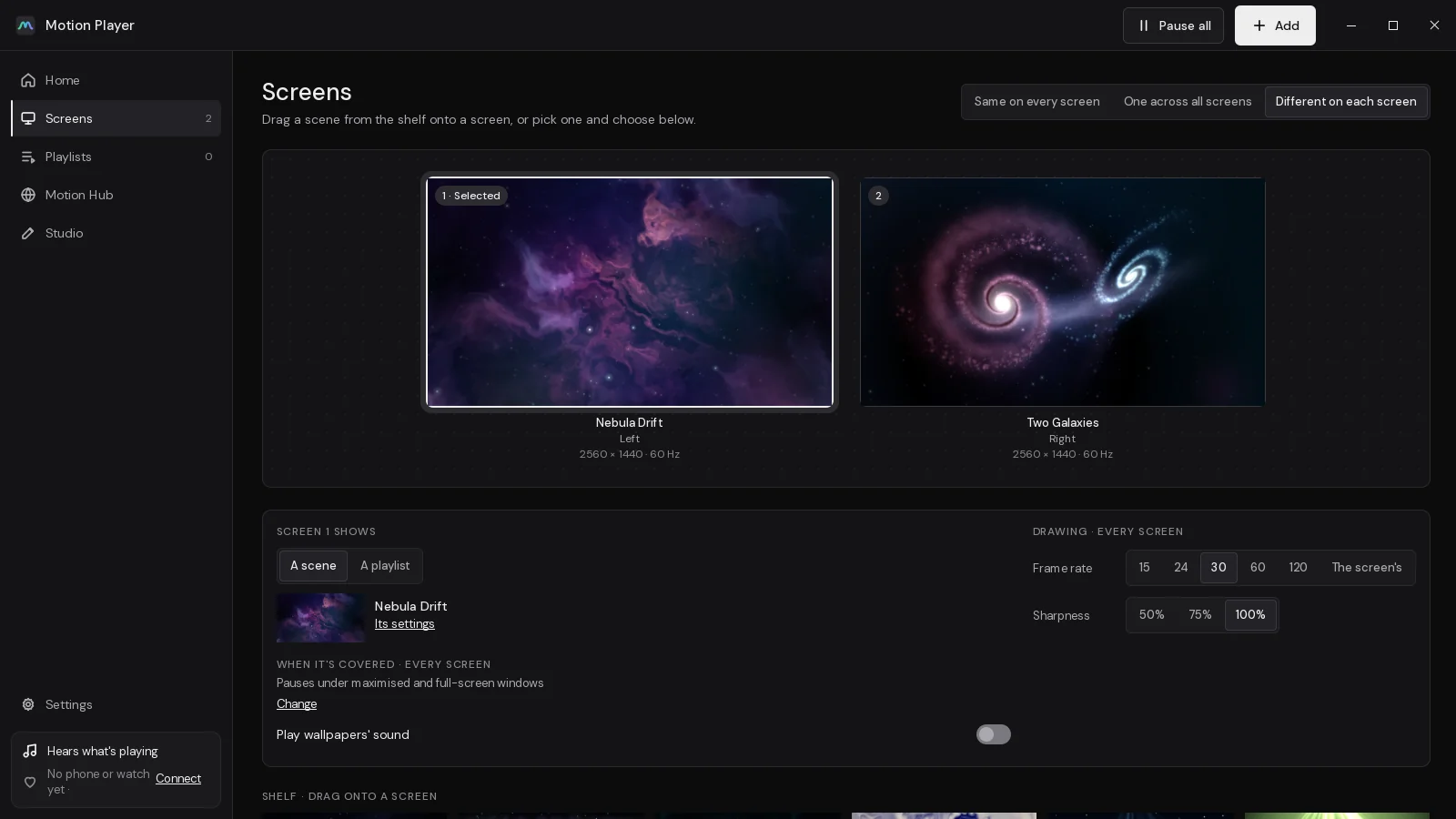
The monitor map
The middle of the page draws your screens as they sit on your desk, to scale. Each one shows its scene's picture, a number badge, and under it the scene's name, the screen's name, its size in pixels and its refresh rate.
- Click a screen to pick it. Its badge reads Selected, and the panel below is about that screen.
- A screen playing a playlist has Playlist on its badge.
- A screen showing another wallpaper reads Not showing Motion, dimmed.
The numbers go left to right, then top to bottom. They're the same numbers Home, the opened scene and the playlists use.
The shelf
Under the map, Shelf · drag onto a screen has every scene you have, small. Drag one onto a screen in the map and it's on that screen. Click one instead, or press Enter on it, and it opens with that screen already chosen under Show on, so you can look at it and change its settings before you use it.
The last box on the shelf is the picked screen's playlist: Play a playlist opens the Playlists page for it, or, when the screen already plays one, its name opens it.
How screens share scenes
With more than one screen, the top right of the page has three choices:
| Choice | What happens |
|---|---|
| Same on every screen | every screen shows the same scene, each drawn whole |
| Different on each screen | each screen shows a scene of its own |
| One across all screens | one scene drawn as a single picture over every screen, each showing its part |
Same on every screen puts the picked screen's scene on every screen. One across all screens spans it. Different on each screen keeps what every screen shows and asks you to pick a screen, then a scene for it.
You can get the same results from an opened scene: Same on every screen, One across all screens or one screen under Show on, then Use as wallpaper. Putting a scene on one screen while they span stops the spanning; the other screens keep what they had.
A spanned scene is laid over the whole area your screens cover, as your desktop arranges them. Screens of different sizes each show the part of the picture that falls on them. Playlists keep spanned scenes in one piece: every screen changes at the same moment.
What the picked screen shows
The panel under the map has three columns.
The screen
The first, headed with the screen's name (Screen 2 shows, say), has:
- A scene or A playlist. Choosing A playlist opens the Playlists page to pick one; choosing A scene turns the screen's playlist off, and the note that pops up has Undo.
- The scene it shows now, and Its settings, which opens the scene at its settings for this screen.
Each screen keeps its own settings for each scene. See A scene's own settings.
Drawing · every screen
Two quick settings that apply to every screen:
- Frame rate: 15, 24, 30, 60, 120 or The screen's (its refresh rate), the same choices as in Settings.
- Sharpness: 50%, 75% or 100%. Below 100%, scenes draw smaller and scale up, which costs less.
Settings has a finer sharpness slider.
When it's covered · every screen
A line says how screens rest now ("Pauses under maximised and full-screen windows · slows down on battery", say), with Change to set it in Settings, and under it Play wallpapers' sound.
Settings has the full choices for each of these.
One screen, or none
With one screen, the page shows it on its own and there's nothing to share. Everything still works the same: drag a scene onto it, or pick from the shelf.
If Motion can't find any screens, the map says No screens found. If Motion can't reach the desktop at all, a red bar across the top of the window says why. On Plasma it reads Plasma isn't answering, so Motion can't change the desktop; you can still look through your scenes. When something's wrong has more.
When screens come and go
Plug in or unplug a monitor and Motion reads the screens again by itself. You can also press F5.
From the terminal
On Linux:
motion-cli set nebula-drift             # every screen
motion-cli set nebula-drift --screen 2  # screen 2 only (1 is the leftmost)
motion-cli set nebula-drift --span # one scene across every screenLast changed 2 November 2026. Something wrong here? Tell us.