The library
Home is where Motion opens: what each screen shows now, and every scene you have under it. This page covers finding scenes, adding your own videos, pictures and scene files, opening a scene to look at it, its own settings, and deleting one.
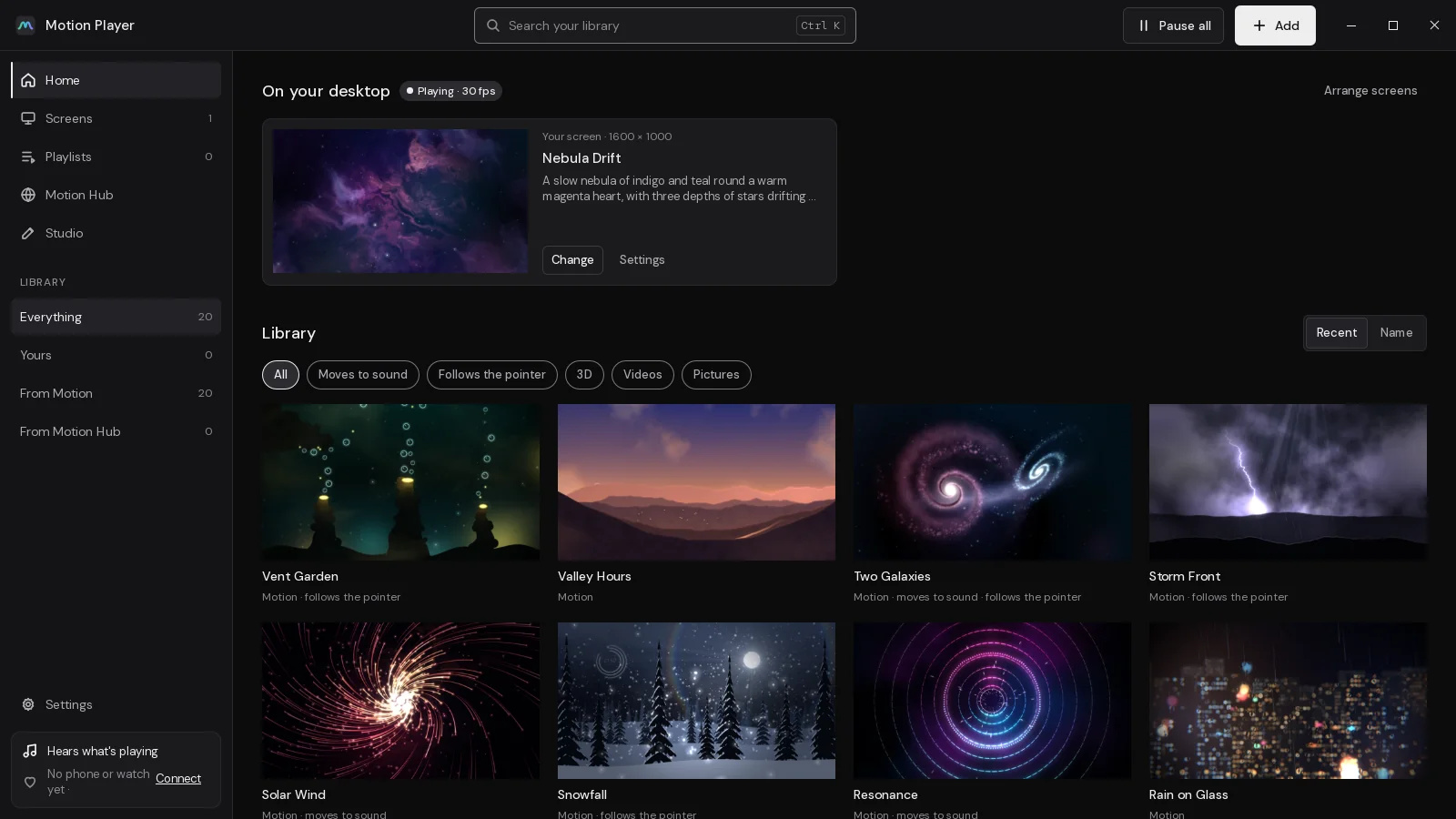
On your desktop
The top of Home has a card for each screen. Each card says which screen it is (Screen 1, where it sits, its size in pixels), the scene it shows, and the scene's description. If the screen plays a playlist, the card says so, with the playlist's name, how it changes and when the next scene comes.
- Change picks a new scene for that screen. The library below then reads Library · choosing for screen 2 (say), and the scene you click goes straight onto that screen, without opening. Stop choosing goes back.
- Settings opens the scene that screen shows, at its settings for that screen. On a screen playing a playlist, the button is Playlist instead and opens it.
The badge by On your desktop says Playing with the frame rate, or Paused after Pause all. Arrange screens goes to the Screens page.
A screen that shows another wallpaper (on Plasma, a desktop set to a picture, say) reads Not showing Motion. Putting a scene on it switches it to Motion.
Tiles
Each scene is a tile: its picture, its name, and a line under it that says where it's from (Motion, Yours or From Motion Hub) and up to two things it does (video, 3D, moves to sound, follows the pointer, reads sensors, reads the web, picture).
A tile with a coloured ring is on a screen now, and its badge says which: On screen 1, 2, or On your screen. Smaller badges mark 3D, Video and Picture.
Click a tile to open it.
Finding a scene
Where from
Under Library in the rail on the left:
| Choice | Shows |
|---|---|
| Everything | every scene |
| Yours | the ones you made, or made from your videos and pictures |
| From Motion | the ones that came with Motion |
| From Motion Hub | the ones you brought in from Motion Hub |
Each has a count beside it.
What it does
The chips above the tiles narrow it further: All, Moves to sound, Follows the pointer, 3D, Videos and Pictures. Order sorts by Recent (the last changed first) or Name.
Search
Type in the search box at the top, or press Ctrl+K to get there. Every word you type has to match something: the name, the description, who made it, its tags, or what it does ("3d", "sound", "video"). If nothing of yours matches, Search Motion Hub for “…” searches the Hub for the same words.
Add videos, pictures and scenes
Click Add at the top right. Its menu has:
- A video, picture or scene file…
- From Motion Hub, which opens the Hub page
- A new scene in Studio, which opens Studio on a fresh scene
You can also drop files onto the Motion window, or click the Make your own tile at the end of the library. On Plasma you can drop a video or picture onto the desktop too.
A video or a picture
Videos: MP4, WebM, MKV, MOV, M4V and the rest. Pictures: PNG, JPEG, WebP, GIF, AVIF and the rest. Either opens Make a scene from a video (or from a picture). It plays there first, filling the screen as it will on the desktop, with its size, length and file size along the top.
- Name: what it's called in your library. Motion suggests one from the file name.
- Keep a copy in Motion: on, Motion copies the file into your scenes. Off, it plays it from where it is, which saves the space of a copy, but the wallpaper goes if you move or delete the file. For a video over 500 MB, Motion points this out.
- Show it on: a screen, Same on every screen (or Your screen), or Not yet.
- Click Make it and use it, or Make the scene if you chose Not yet. With Not yet, it opens in the library for you to look at first.
Videos play hardware-decoded and loop. A picture drifts slowly. In Studio you can lay glow and motes over either.
A scene file
A .motion file (what Studio exports), a .zip with a scene's folder in it, or a scene's folder all come straight in and open, ready to use. Motion checks a .motion file from end to end before it unpacks it. See Motion files.
A scene, opened
Opening a scene shows it running on the left, and what it is, where it goes and its settings on the right. The preview runs only in the window: Only a preview. Your desktop isn't changed.. A scene that follows the pointer says It follows the pointer, and it does.
Under the preview, three facts:
- Reacts to: sound, the pointer, the time of day, sensors, or Nothing.
- Reaches: the websites it reads, or No websites.
- Runs: Layers only, no code of its own, Layers and a script, in Motion's sandbox, A video, looped or A picture.
On the right: its name, description, tags, who made it and its size. Then:
- Show on: the screen it's for. With several screens: Screen 1, Screen 2 and so on, Same on every screen, and One across all screens. A tick marks a screen that shows it now.
- Use as wallpaper puts it there. Once it's there, the button reads On screen 2 now (or wherever).
- Add to a playlist offers your playlists, and A new playlist named after the scene. See Playlists.
- Whose sensors: only for a scene that reads sensors. Pick which of your tokens feeds it. See The Sensors page.
In the bar at the top:
- Edit in Studio opens one of yours in Studio. On a scene that isn't yours, it's Make a copy in Studio, and you edit the copy.
- The folder button (Show its folder) opens its folder.
- The back button (or Alt+←) goes back to where you were.
Some scenes ask before they play, to reach a website. Motion shows what they ask in a sheet first. See Before a scene plays.
A scene's own settings
Under Its settings on your screen are the settings the scene's maker offered: sliders, choices, switches, colours, text, and richer ones like gradients, curves and palettes. Some are grouped under headings, and some have a line of help under their name. A scene without any says No settings of its own.
Change one and the preview follows straight away. The wallpaper picks it up a moment later.
With more than one screen, the settings go where Show on points:
- On Same on every screen or One across all screens: Changes go to every screen. Pick one above to set it apart.
- On one screen: Only screen 2 changes.
So the same scene can be green on one screen and amber on another. Reset puts the settings back as they came, and the note that pops up has Undo.
A scene with a bloom usually offers it here as Bloom. The settings for every scene at once (frame rate, sharpness) are in Settings.
Deleting a scene
Only scenes of yours can be deleted: ones you made, imported or brought in. Open it, and click Delete at the foot of its settings. Motion asks first:
Keep it leaves it alone. Delete deletes it.
If you made a wallpaper from a video with Keep a copy in Motion off, deleting the scene leaves your video where it was.
Keys
| Keys | Does |
|---|---|
| Ctrl+K | goes to the search box (on Settings, to Find a setting) |
| F5 | reads the scenes and screens again |
| Alt+← | back, from an opened scene or Settings |
Where your scenes live
Yours are in ~/.local/share/motion/scenes on Linux and %LOCALAPPDATA%\motion\scenes on Windows. A scene is a folder with its scene.json and the pictures, videos and models it uses. Show its folder opens it.
Last changed 2 November 2026. Something wrong here? Tell us.