3D scene
Shapes and models in real 3D, with lights and shadows.
- Kind
- Layer · 3D
- Script name
threed- Cost to draw
- Very heavy
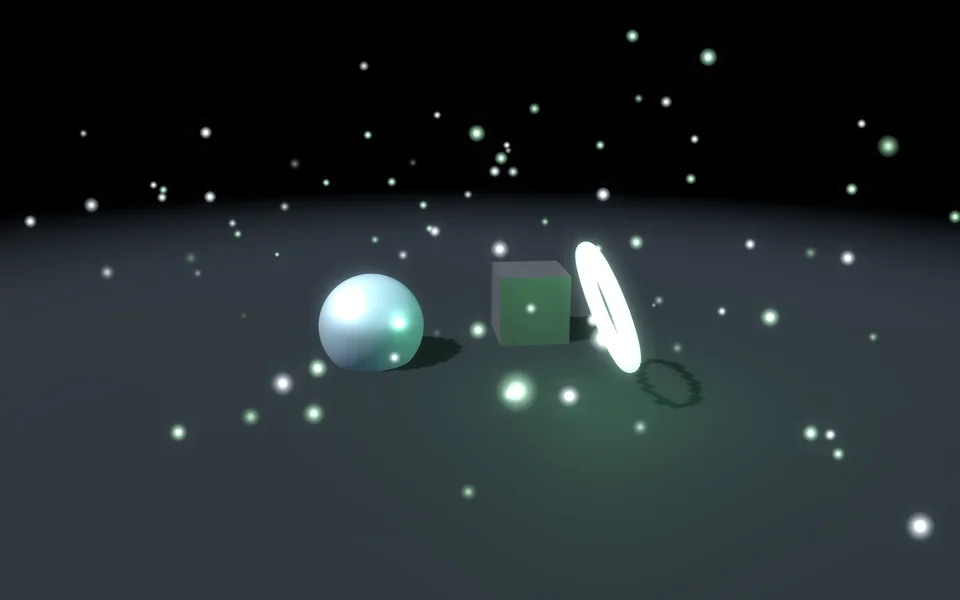
Objects and lights
| Setting | Kind | Starts at | Range and notes |
|---|---|---|---|
In the sceneitems | 3D items | [{"kind": "ground", "name": "Ground"}, {"kind": "sphere", "n | – |
Camera
| Setting | Kind | Starts at | Range and notes |
|---|---|---|---|
Field of viewfov | number | 45° | 10 to 120° |
Distancedistance | number | 9 m | 1 to 80 m |
Heightheight | number | 16° | -80 to 89° |
Aroundorbit | number | 0° | -180 to 180° |
Goes roundautoRotate | number | 4°/s | -60 to 60°/s |
Looks at the heighttargetY | number | 1 m | -10 to 20 m |
Leans to the pointerlean | number | 35% | 0% to 100% |
Light and air
| Setting | Kind | Starts at | Range and notes |
|---|---|---|---|
Backgroundbackground | choice | Clear | Clear, ColourClear shows the layers under it |
Background colourbackgroundColour | colour | #08090a | – |
Ambient lightambient | colour | #caecff | – |
Ambient amountambientAmount | number | 12% | 0% to 100%Keeps shadows from going black |
Fogfog | number | 30% | 0% to 100% |
Fog colourfogColour | colour | #0b1a22 | – |
Bloombloom | number | 50% | 0% to 200% |
Tone mappingtonemap | choice | Filmic | None, Filmic, ACES, Hejl |
Exposureexposure | number | 1× | 0.2 to 3× |
From a script
Every setting above can be changed by the scene's logic, by its key. Say the layer is called 3D scene:
scene.set("3D scene", "fov", 120);scene.animate("3D scene", "opacity", 0.5, 2);import { scene } from "motion";scene.set("3D scene", "fov", 120);scene.animate("3D scene", "opacity", 0.5, 2);◆On Scene Start
ƒSet Layer SettingTarget is Layer
Target3D scene
Parameter Namefov
Parameter Value120
Used in
The example scenes with a 3D scene layer in them. Each picture is the whole scene, not the layer alone: open one to see what the layer does in it.
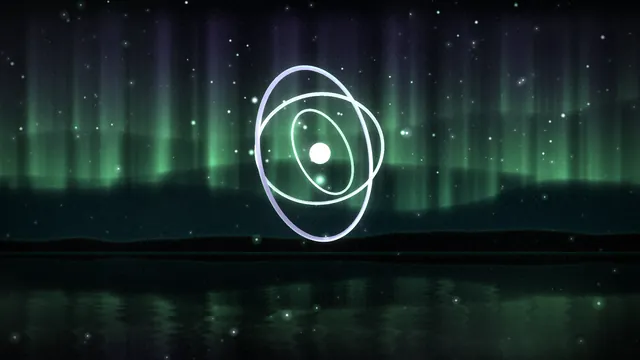 First Light
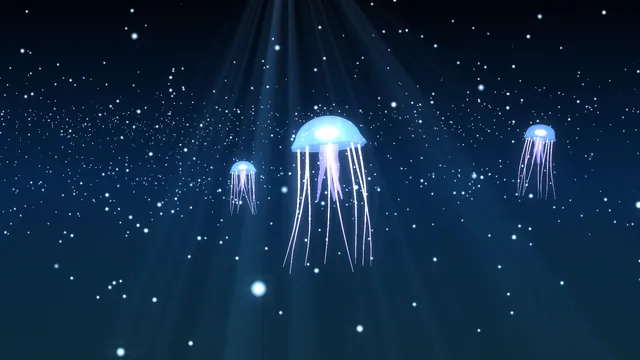 Jelly Bloom
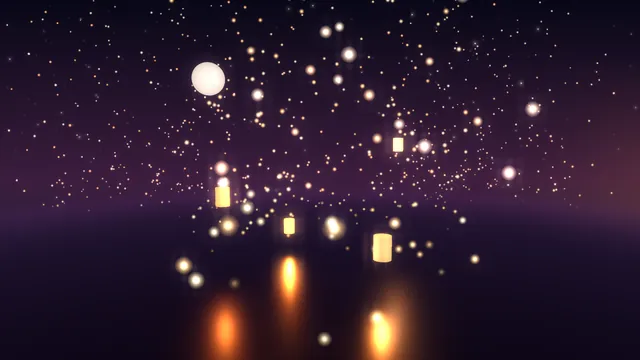 Lantern Sea
What every layer has
Besides its own settings, every layer has its opacity, blend, placement, quick effects and an effects stack. They're listed once, on the layers page.
Notes from the community
Written by creators and checked by the docs' editors. Not part of Motion's official reference.