ReferenceLayersLines and shapes
Shape
Rectangles, circles, rings, stars and more.
- Kind
- Layer · Lines and shapes
- Script name
shape- Cost to draw
- Light
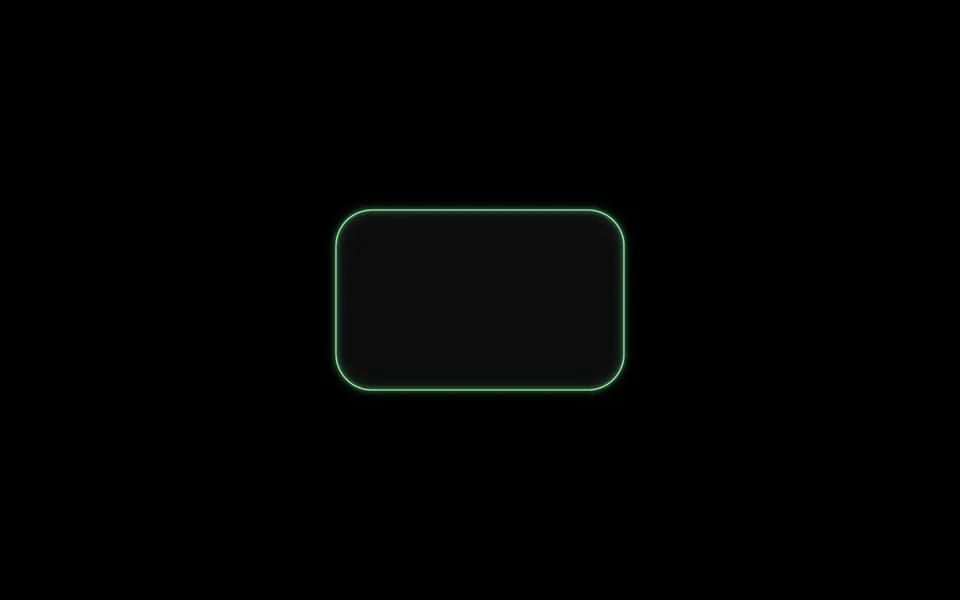
Shape
| Setting | Kind | Starts at | Range and notes |
|---|---|---|---|
Shapekind | choice | Rectangle | Rectangle, Circle, Ring, Line, Triangle, Hexagon, Star |
Widthwidth | number | 30% | 0.5% to 150% |
Heightheight | number | 30% | 0.5% to 150% |
Roundingradius | number | 6% | 0% to 50% |
Fillfill | colour | #141415 | – |
Fill opacityfillOpacity | number | 60% | 0% to 100% |
Outlineoutline | colour | #7ce695 | – |
Outline widthoutlineWidth | number | 2 px | 0 to 20 px |
Glowglow | number | 40% | 0% to 100% |
From a script
Every setting above can be changed by the scene's logic, by its key. Say the layer is called Shape:
scene.set("Shape", "width", 1.5);scene.animate("Shape", "opacity", 0.5, 2);import { scene } from "motion";scene.set("Shape", "width", 1.5);scene.animate("Shape", "opacity", 0.5, 2);◆On Scene Start
ƒSet Layer SettingTarget is Layer
TargetShape
Parameter Namewidth
Parameter Value1.5
Used in
The example scenes with a Shape layer in them. Each picture is the whole scene, not the layer alone: open one to see what the layer does in it.
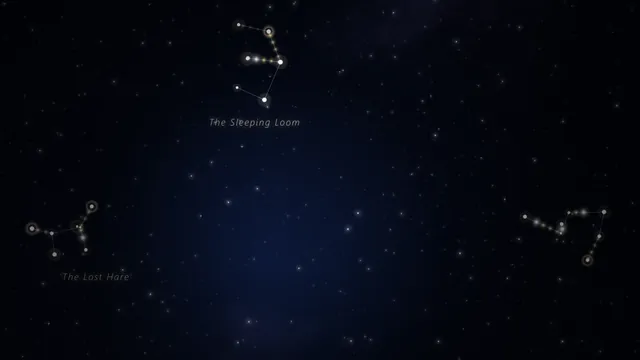 Constellations
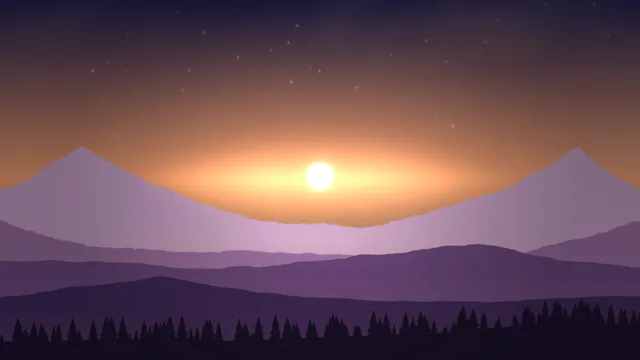 Long Horizon
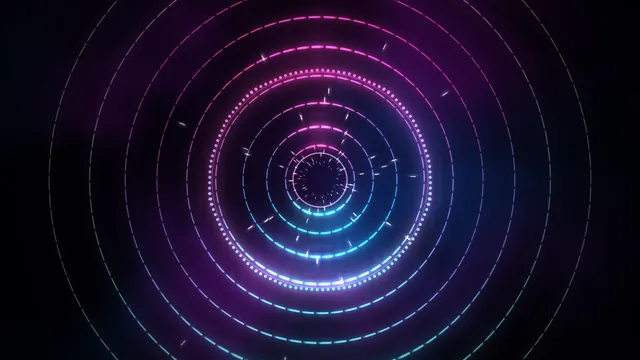 Resonance
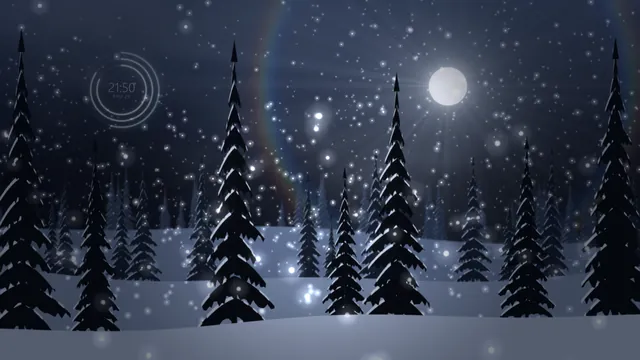 Snowfall
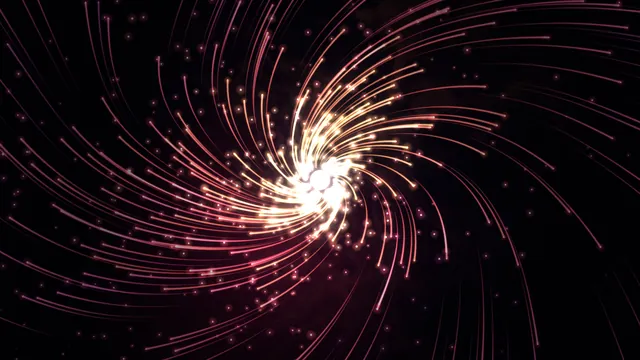 Solar Wind
What every layer has
Besides its own settings, every layer has its opacity, blend, placement, quick effects and an effects stack. They're listed once, on the layers page.
Notes from the community
Written by creators and checked by the docs' editors. Not part of Motion's official reference.