Guide
Mood buttons from a web page
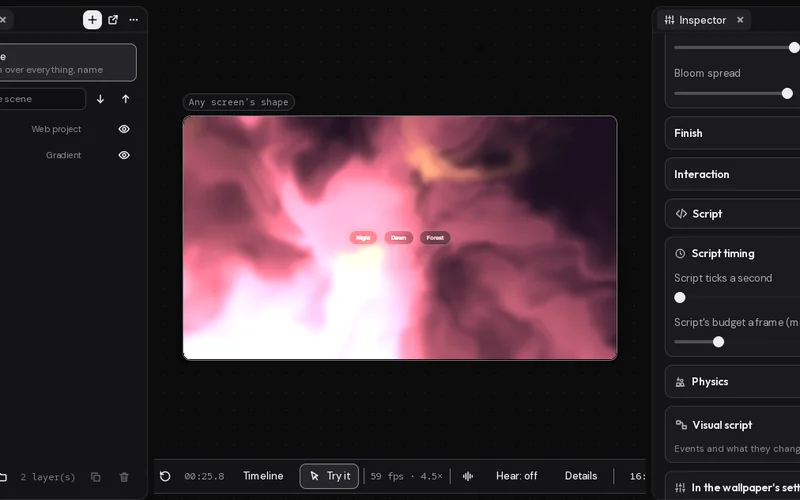
You'll end up with a web page on your wallpaper with three buttons, Night, Dawn and Forest. Clicking one tells the scene's script, which fades the sky behind the page to that mood's colours, remembers it for next time, and tells the page which mood is on so it can light up the right button.
What you'll learn
- How a Web project's page and the scene's script talk:
motion.sendfrom the page,scene.sendToPageback from the script. - Why the page only asks and the script decides, so the same script works wherever a click came from.
- How scene.store keeps the mood, so the wallpaper starts in the same one tomorrow.
What you need
- A Gradient named Sky, at the bottom.
- A Web project layer named Page, above it. Its defaults are right for this:
| Setting | Value |
|---|---|
| See-through background | on |
| Clicks reach the page | on |
| Frame rate | 30 |
- Scenes can follow the pointer turned on, in Motion Player's Settings › Sound and pointer, so clicks on the desktop reach the wallpaper.
A Web project is a page of your own, in HTML, CSS and JavaScript, kept in the scene's folder under web/. It's drawn as a layer like any other. Studio keeps it with the scene, with its scripts, styles and pictures, and the page can't reach anything outside it unless you turn on Network.
How it's built
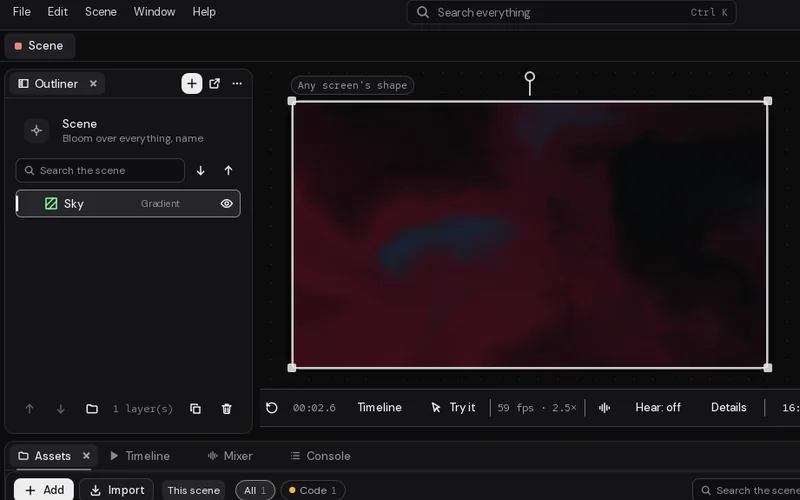
- On Studio's start page (Ctrl+N brings it back), click Empty scene under Start something new. It comes with a few layers to start from; delete them (pick each in the Outliner and press Delete). Click + in the Outliner's tab, add a Gradient, and call it Sky (double-click its name).
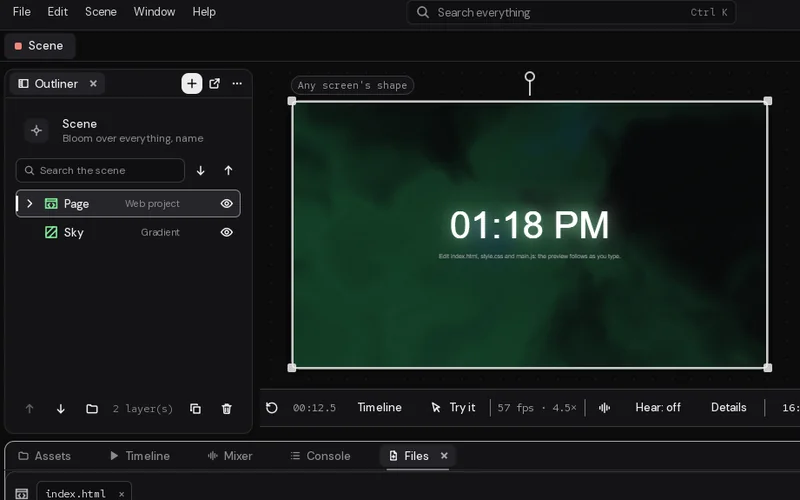
- Click + again and pick Webpage (under Your own). Under Start from, pick Web project, then click Add. Call it Page.
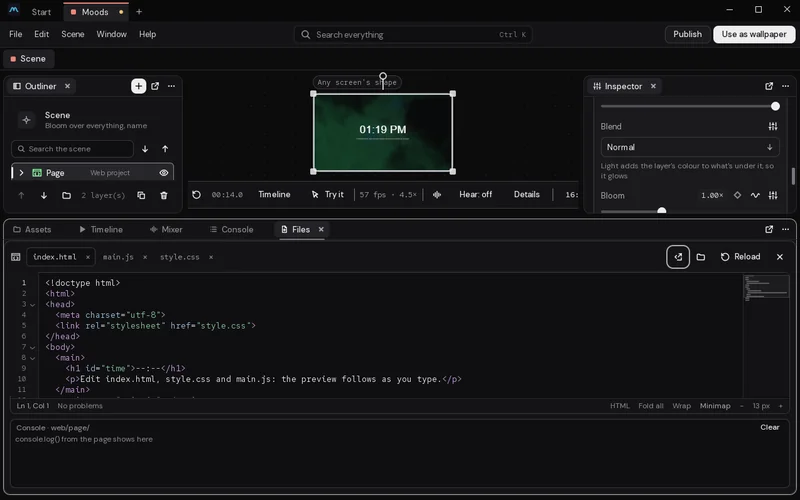
- Studio makes the page's files,
index.html,style.cssandmain.js, withmotion.d.tsbeside them, and opens them in the Files panel under the preview. (If you close it, pick Page and click Open the editor.) - Replace
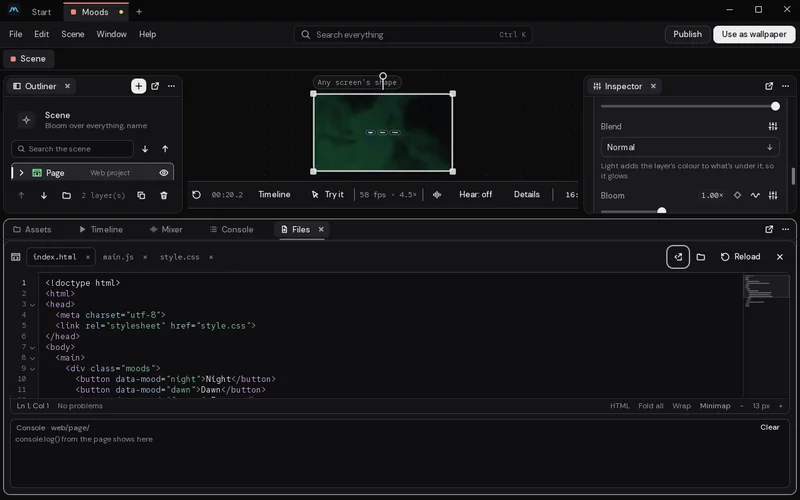
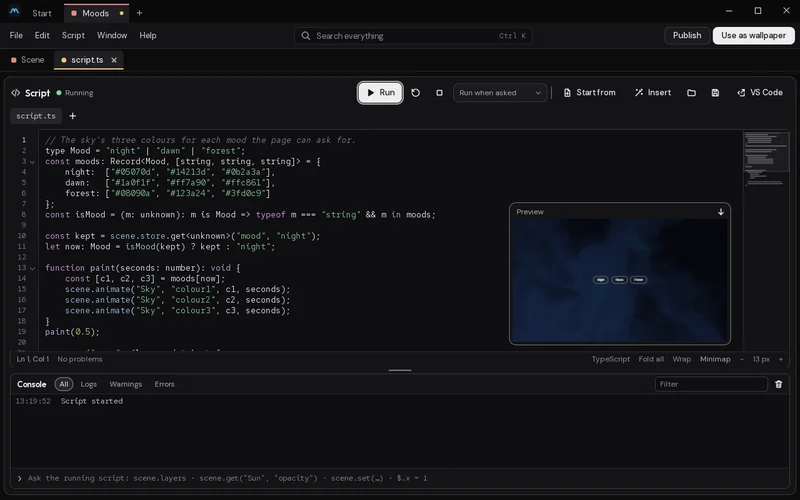
index.htmlandmain.jswith the files below, and add the button styles tostyle.css. The preview reloads half a second after you stop typing. What the page writes withconsole.logshows in the console at the bottom of the Files panel. - Pick Scene at the top of the Outliner. On its Script card (click the card's title if it's folded) click Open the editor, or press Ctrl+Shift+E: the script opens as the
script.tstab, in the row under the toolbar. Paste the scene's script below and click Run. - Click the Scene tab, at the start of the row under the toolbar, to go back to the preview. Click Try it under the preview and click the buttons.
The page
index.html:
<!doctype html>
<html>
<head>
  <meta charset="utf-8">
  <link rel="stylesheet" href="style.css">
</head>
<body>
  <main>
    <div class="moods">
      <button data-mood="night">Night</button>
      <button data-mood="dawn">Dawn</button>
      <button data-mood="forest">Forest</button>
    </div>
  </main>
  <script src="main.js"></script>
</body>
</html>main.js:
// Each button tells the scene's script a mood; the script says back which is on.
const buttons = document.querySelectorAll("button[data-mood]");

for (const b of buttons)
    b.addEventListener("click", () => motion.send({ mood: b.dataset.mood }));

motion.on("message", (data) => {
    if (!data || !data.mood)
        return;
    for (const b of buttons)
        b.classList.toggle("on", b.dataset.mood === data.mood);
    document.body.style.setProperty("--accent", data.colour);
});

// ask which mood is on as soon as the page is there
motion.on("ready", () => motion.send({ hello: true }));
Add to style.css:
.moods { display: flex; gap: 2vh; }
button {
    font: inherit;
    font-size: 2.4vh;
    padding: 1.2vh 3vh;
    border-radius: 99px;
    border: 1px solid rgba(244, 246, 248, 0.3);
    background: rgba(8, 9, 10, 0.4);
    color: #f4f6f8;
    cursor: pointer;
}
button.on { border-color: var(--accent, #7ce695); box-shadow: 0 0 2vh var(--accent, #7ce695); }
The scene's script
// The sky's three colours for each mood the page can ask for.
type Mood = "night" | "dawn" | "forest";
const moods: Record<Mood, [string, string, string]> = {
    night:  ["#05070d", "#14213d", "#0b2a3a"],
    dawn:   ["#1a0f1f", "#ff7a90", "#ffc861"],
    forest: ["#08090a", "#123a24", "#3fd0c9"]
};
const isMood = (m: unknown): m is Mood => typeof m === "string" && m in moods;

const kept = scene.store.get<unknown>("mood", "night");
let now: Mood = isMood(kept) ? kept : "night";

function paint(seconds: number): void {
    const [c1, c2, c3] = moods[now];
    scene.animate("Sky", "colour1", c1, seconds);
    scene.animate("Sky", "colour2", c2, seconds);
    scene.animate("Sky", "colour3", c3, seconds);
}
paint(0.5);

scene.on("page", (layer, data) => {
    if (isMood(data?.mood)) {
        now = data.mood;
        scene.store.set("mood", now);
        paint(2);
    }
    // a new mood, or the page asking: tell it which mood is on
    scene.sendToPage(layer, { mood: now, colour: moods[now][1] });
});
How it works
Every page in a Web project gets an object called motion. It has the scene's time, the sound, the pointer and clicks, the wallpaper's settings, and two ways to talk with the scene's script:
| From | Sends with | Heard by |
|---|---|---|
| The page | motion.send(data) | scene.on("page", (layer, data) => …) in the script |
| The script | scene.sendToPage(layer, data) | motion.on("message", (data) => …) on the page |
What goes either way is anything JSON can say, up to 64 kB at a time.
When the page loads, it asks with { hello: true }. The script answers with the mood that's on. When a button is clicked, the page sends { mood: "dawn" }; the script checks it's one it knows, keeps it with scene.store so the wallpaper starts in the same mood tomorrow, fades the three colours with scene.animate, and answers the same way.
scene.on with "page" is given the layer's id along with the data, so scene.sendToPage answers the page that asked. With two Web project layers, each gets its own answer.
The page never sets anything in the scene itself. It asks, and the script decides. That keeps the page simple, and means the same script works whether a click came from the page, from a node graph, or from anywhere else.
The buttons work because Clicks reach the page is on: a click on the desktop is passed to the page as a real click at that spot. Turn it off and the page still hears clicks with motion.on("click"), but its buttons and links don't.
Make it yours
- Everything
motionhas.motion.d.ts, beside your page's files, lists it all, and Studio offers those words as you type.motion.stageeven finds the scene's objects. - Move to the music on the page.
motion.on("beat", (b) => …)gives each beat's count and pulse, andmotion.bass,motion.mid,motion.trebleandmotion.levelare there whenever you read them. Studio turns on the Web project layer's Hears the sound when the code reads the sound. - Draw on a canvas. A page can draw anything a browser can. This
main.jsputs a soft light under the pointer that flares on each beat (with an empty<body>inindex.html):
const canvas = document.createElement("canvas");
document.body.append(canvas);
const ctx = canvas.getContext("2d");
let flare = 0;

motion.on("beat", () => { flare = 1; });
motion.on("frame", (f) => {
    if (canvas.width !== innerWidth || canvas.height !== innerHeight) {
        canvas.width = innerWidth;
        canvas.height = innerHeight;
    }
    flare = Math.max(0, flare - f.dt * 3);
    const x = motion.pointer.x * canvas.width, y = motion.pointer.y * canvas.height;
    const r = canvas.height * (0.08 + 0.06 * flare);
    const glow = ctx.createRadialGradient(x, y, 0, x, y, r);
    glow.addColorStop(0, `rgba(202, 236, 255, ${0.5 + 0.5 * flare})`);
    glow.addColorStop(1, "rgba(202, 236, 255, 0)");
    ctx.clearRect(0, 0, canvas.width, canvas.height);
    ctx.fillStyle = glow;
    ctx.fillRect(x - r, y - r, 2 * r, 2 * r);
});