DocsExample scenesColour and light
Example scene · Colour and light
Two Galaxies
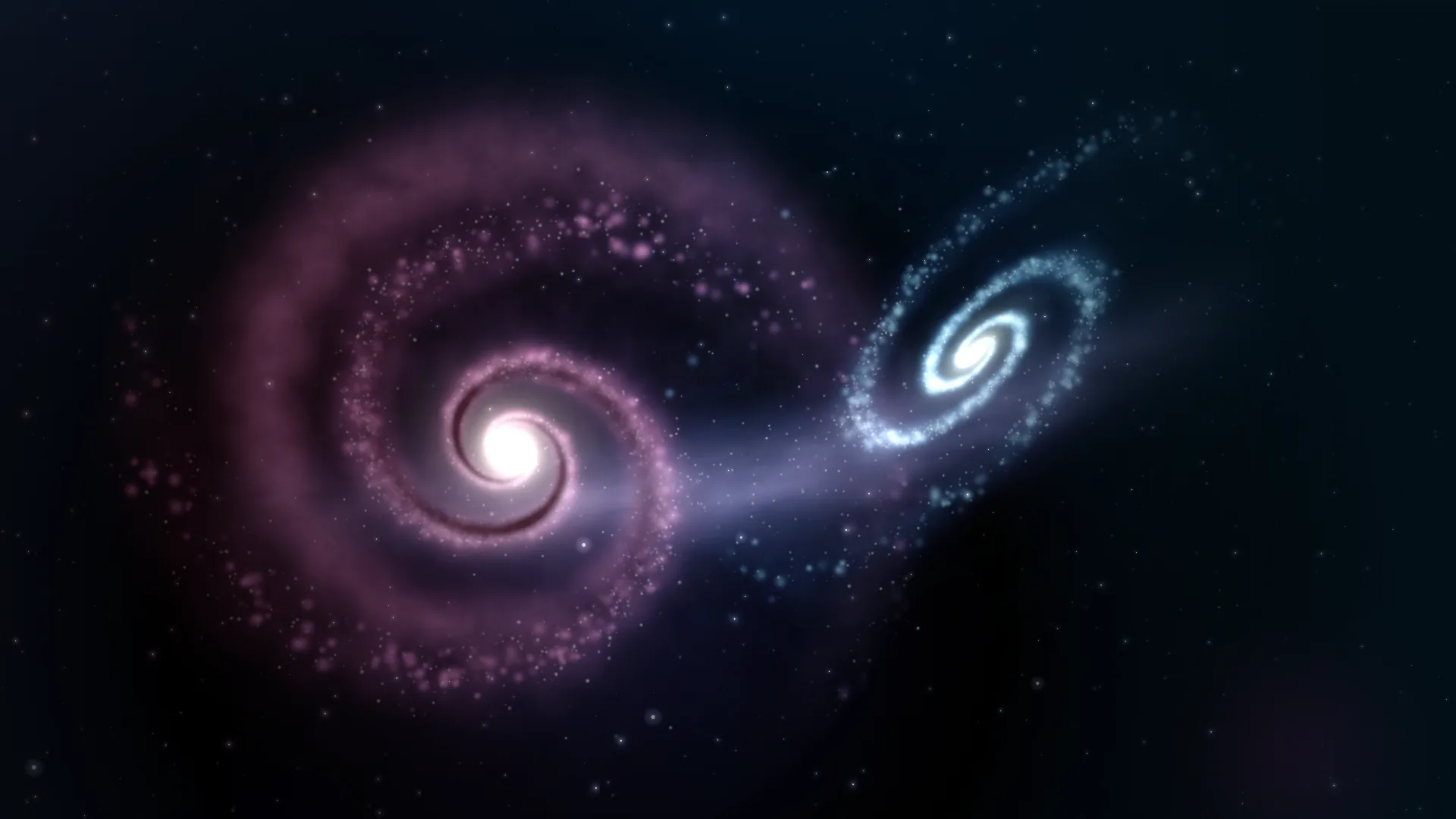
Two spiral galaxies, one rose and one ice-blue, slowly falling into each other on black, with a bridge of stars pulled out between them. Their light adds up where they overlap; the rose one turns very slowly, and their cores flare on the beat.
Main feature: blend modes (Layers and folders, and Blend in the inspector). Also uses: The pointer, clicks and time (each layer's Depth), Sound (the cores follow the beat), Publishing (a blend mode offered as a setting).
What you'll learn
- How plain layers look like light because of how each one is mixed with what's under it.
- The difference between Light and Screen: both brighten, but Screen does it gently, so the overlap glows without burning out to white.
- Why the pictures are on black or white: black is what Screen and Light leave alone, and white is what Multiply leaves alone.
How it's built
Every part of the picture is a plain layer; what makes it look like light is how each one is mixed with what's under it.
- Deep space, a Gradient, and Far stars, Stars, go at the bottom. Over them, Ice galaxy, a picture (Picture or video), is set to Light (it adds its colour to what's under it). Light on black stays as it is, and where it meets other light it gets brighter.
- Bridge of stars, the stream pulled out between them, is set to Screen, like the rose galaxy, and sits under it.
- Rose galaxy is set to Screen. Screen brightens like Light, but gently, so where the two galaxies cross the overlap glows without burning out to white.
- Dust lanes is set to Multiply: a picture of brown lanes on white. White multiplied changes nothing, so only the brown shows, darkening the rose galaxy's arms the way dust does. It turns with the galaxy, at the same speed and from the same place.
- Colour of the light is a gradient from rose to blue set to Soft light: it warms the left and cools the right without covering anything.
- Cores are two Glow orbs set to Colour dodge, which only brightens what is already bright, so it makes the galaxies' hearts flare and leaves black space alone. Their Brightness follows the beat. Near dust, Motes, and a Vignette go on top.
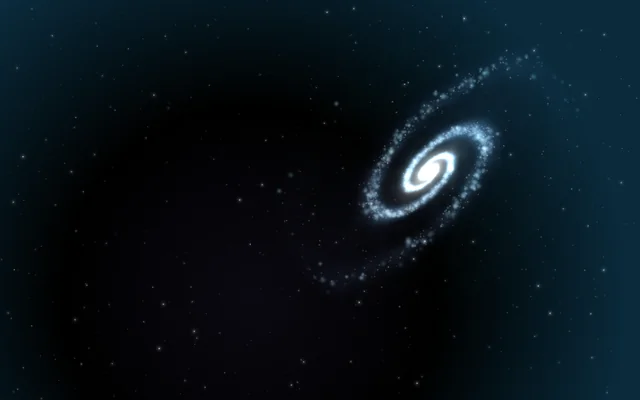
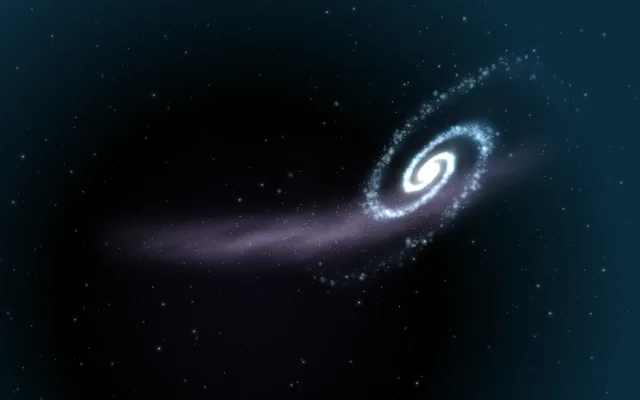
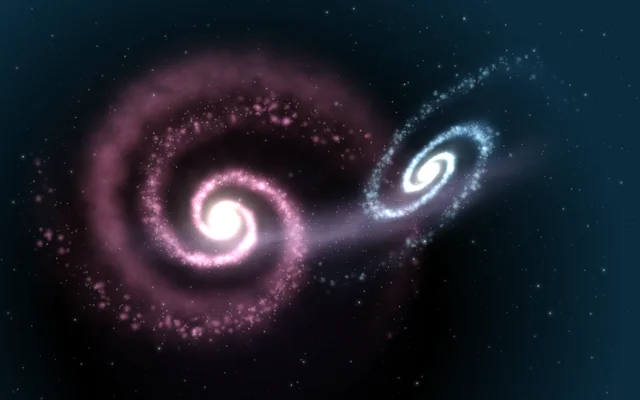
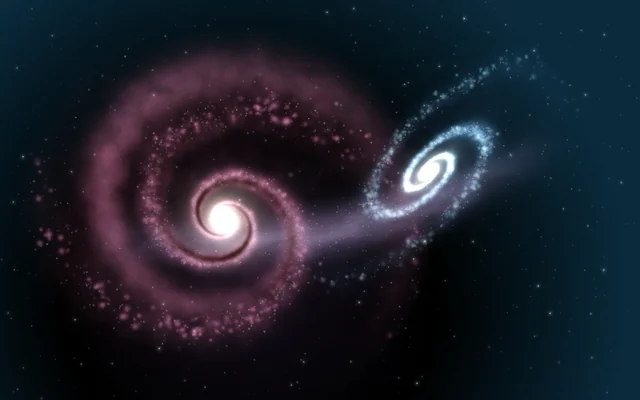
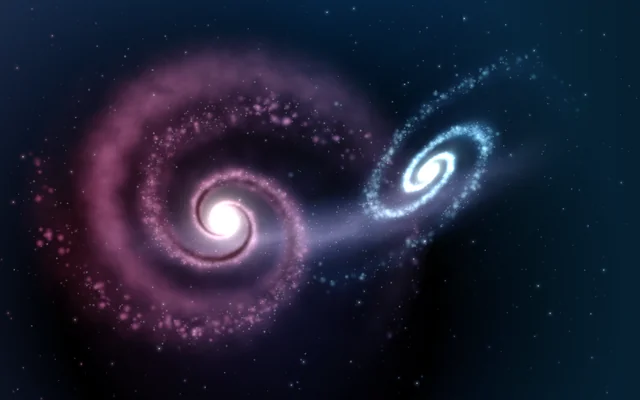
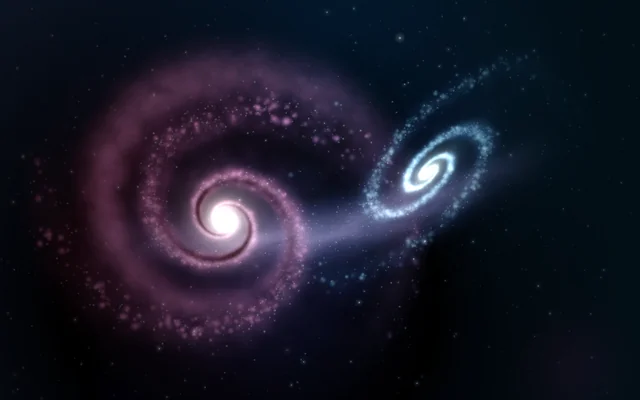
The four pictures, ice.jpg, rose.jpg, bridge.jpg and dust.jpg, are in the scene's Assets panel (Alt+3). To use your own, drag them into Assets, pick a layer and choose yours under File. Keep glowing things on black (for Screen or Light) and dark things on white (for Multiply).
Look in Studio
Open it from Studio's start page, under Start from one of Motion's.
- Pick each layer in the Outliner and look at Blend in its Layer card.
- The rose galaxy and its dust have the same Placement and the same Spin under Motion, so they turn together.
- Click ∿ beside Brightness on Cores to see it follow the sound.
- The Bloom card (click Scene at the top of the Outliner) has the scene's bloom, which softens the brightest parts.
Make it yours
- Set Ice galaxy to Lighten and the overlap stops adding up: you see whichever galaxy is brighter at each point.
- Put Difference on Colour of the light, the Gradient, for a strange, inverted cast.
- Give Ice galaxy, a Picture or video, a slow Spin the other way from the rose one.
Settings people can change
| Setting | What it does |
|---|---|
| The rose galaxy turns | How fast, in degrees a second, and which way |
| Dust lanes | How dark the dust is |
| How the galaxies mix | The rose galaxy's blend mode: Screen, Light or Lighten |
| Colour of the light | How strongly the rose-to-blue cast colours the galaxies |
| Bloom | How much the bright parts bloom over everything |